Educational overview only. Prudent Guardian (www.inspirecodingedu.com) is not an insurance company, broker, law firm, or registered investment adviser, and does not provide personalized insurance, investment, tax, medical, or legal advice. Verify details with licensed professionals and official issuers.
The through date ends before a week you have daily reports for. You flip to the second page of your pay application backup to confirm the crew’s time logs, and every entry for that seven-day window is signed by the foreman and stamped by the site superintendent. You cross-reference with the material delivery receipts you tucked into the folder last month, and the lumber, rebar, and fastener drops all land in that unaccounted-for week. Your thumb hovers over the post-it note you stuck to the front of the draw request yesterday, where you jotted the expected payment amount that now is at least 12% lower than what you are owed for completed work.
Cross-Reference This Pay Application With Attached Backup
Start by confirming the through date listed on the first page of the pay app aligns with the work period the general contractor outlined in the most recent draw schedule shared in the project’s shared communication channel. You don’t need to flag the error immediately; first, confirm that none of that week’s work was accidentally included in prior line items, and that the general contractor did not issue a written change to the draw schedule that would exclude that week intentionally. Cross-check with the pay app’s pre-filled line item totals to see if the sum matches what you would expect for work up to the listed through date, which helps you confirm the gap is not a typo in the through date field alone. Illustrative example: The pay app lists a through date of October 13, but your daily logs show you completed slab prep and formwork for the west wing between October 14 and October 20, a full week of work that falls outside the listed period, and the pre-filled line item total only accounts for work completed up to October 13. If you find the through date error is paired with a line item sum that does include the unaccounted week’s work, you only need to correct the through date field instead of adjusting the full pay app total.

Document the Gap Between Stated Through Date and Completed Work
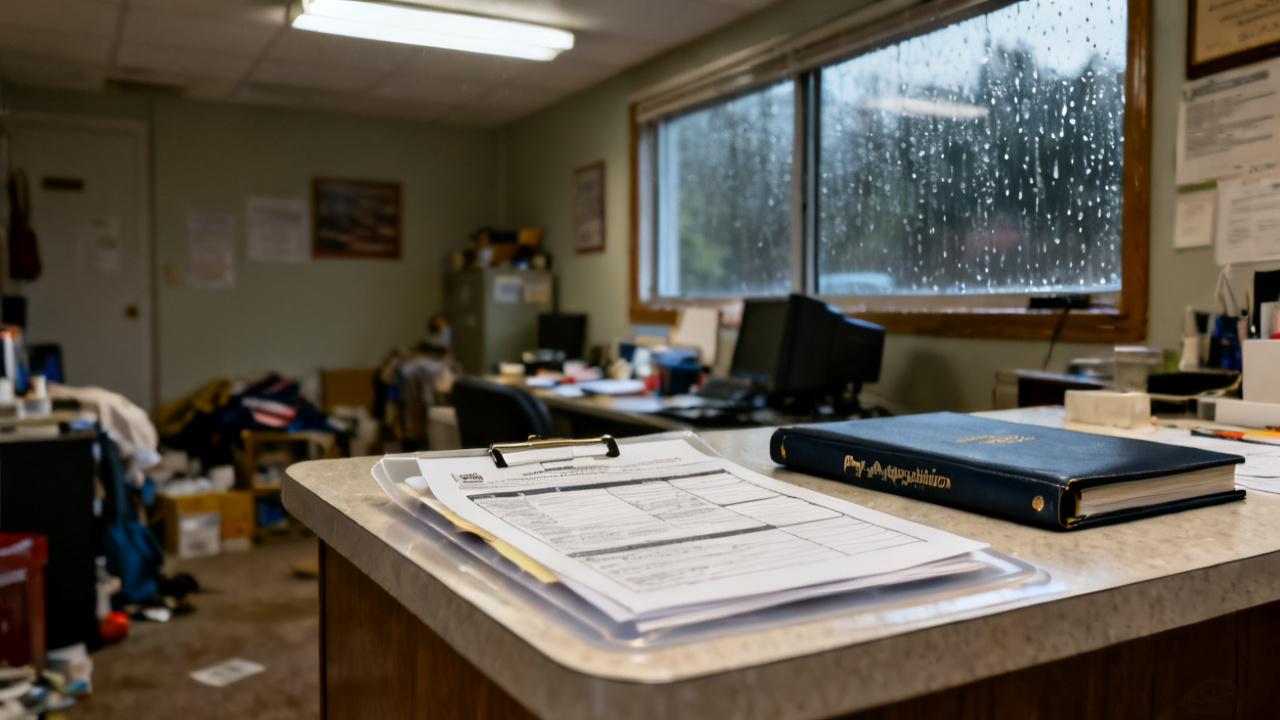
Use a bright highlighter to circle the incorrect through date on the first page of the pay document, and write a short, clear note in the adjacent margin that references the unaccounted work period, no extra fluff. Avoid vague language like “missing week” and instead specify the exact dates of the unaccounted work, so anyone reviewing the submission can immediately cross-check with their own site records. Make a separate note in your own digital file of this pay app so you can reference the gap later if you need to follow up on payment timing, and upload a timestamped scan of the annotated pay app to the project’s shared drive before you make any adjustments to the line items, so you have a record of the original submission’s error. You can also send a quick, one-sentence message to the GC’s project coordinator to let them know you found a through date discrepancy and are adjusting the pay app before submission, to set expectations for the adjusted total they will receive.
Match Unaccounted Work to Pre-Approved Scope Line Items
Every hour of work and every material cost from the unaccounted week must tie directly to a line item that was already approved in the original project scope, so you don’t have to submit new change requests for this work alongside your adjusted pay app. Use the table below to map each portion of the unaccounted work to its corresponding scope line, and attach the referenced proof alongside your adjusted submission:
| Scope Line Item ID | Work Completed in Unaccounted Week | Verified Supporting Proof |
|---|---|---|
| L027 | Slab prep and formwork for west wing ground floor | Signed daily logs 10/14-10/20, material delivery receipt #472 |
| L031 | Underground plumbing rough-in for west wing restrooms | Municipal inspector sign-off #1928, licensed plumber time logs |
| L042 | Exterior foundation waterproofing for west wing perimeter | Site superintendent sign-off, waterproofing material batch test records |
Add a separate line at the bottom of the existing pay app line items that sums the total for the unaccounted week, so the total pay request amount is clearly updated, with a note that this sum covers work completed in the specific date range you noted in the margin earlier. Double-check that each cost you add aligns with the pre-approved unit pricing for each line item, so the reviewer does not have to follow up to ask for adjusted cost breakdowns.
Attach Supporting Documentation Directly To Your Submission
Compile all supporting proof for the unaccounted week in the order it corresponds to the line items you added, so the reviewer can flip between the line item and its proof without searching through a stack of loose papers. Include the full set of daily logs for the unaccounted week, all material delivery receipts that fall in that period, any inspector or superintendent sign-offs for work completed that week, and a copy of the original draw schedule that lists the through date that was supposed to apply to this pay period. If you store your pay application backups on Draw Jacket, you can link directly to each supporting document in your adjusted submission, so the reviewer can access them with a single click. Include a short cover note with your submission that only states you adjusted the pay app to include work completed through the end of the previously unaccounted week, with no extra context or complaints about the error, to keep the review process moving smoothly. Save a copy of the full adjusted submission, including the cover note and all supporting documents, to your own records before you send it to the GC’s accounting team.
Revisit This Pay Document Adjustment Before Your Next Draw Submission
The next time you open this same pay document page, seven days from now, you will first check for any comments or approvals from the general contractor’s review team. Cross-check the approved amount for this pay app against the adjusted total you submitted, to confirm the unaccounted week’s work was included in the approved sum. If there is a discrepancy at that point, you can pull up the annotated copy of the original pay app and your supporting records to address the gap quickly, without having to reassemble all your documentation from scratch. Use this review to note any patterns in through date errors, so you can flag expected through dates to the GC’s accounting team at least three days before your next draw submission, to avoid the same issue in future pay periods. You can also use this check-in to log the adjustment for your own internal job costing records, so you can accurately track total project revenue against budgeted costs as work progresses. If the adjustment is approved without issue, you can add a note to your standard draw prep checklist to double-check through dates against your daily logs 24 hours before every future submission, to catch similar errors before you send your pay app for review.